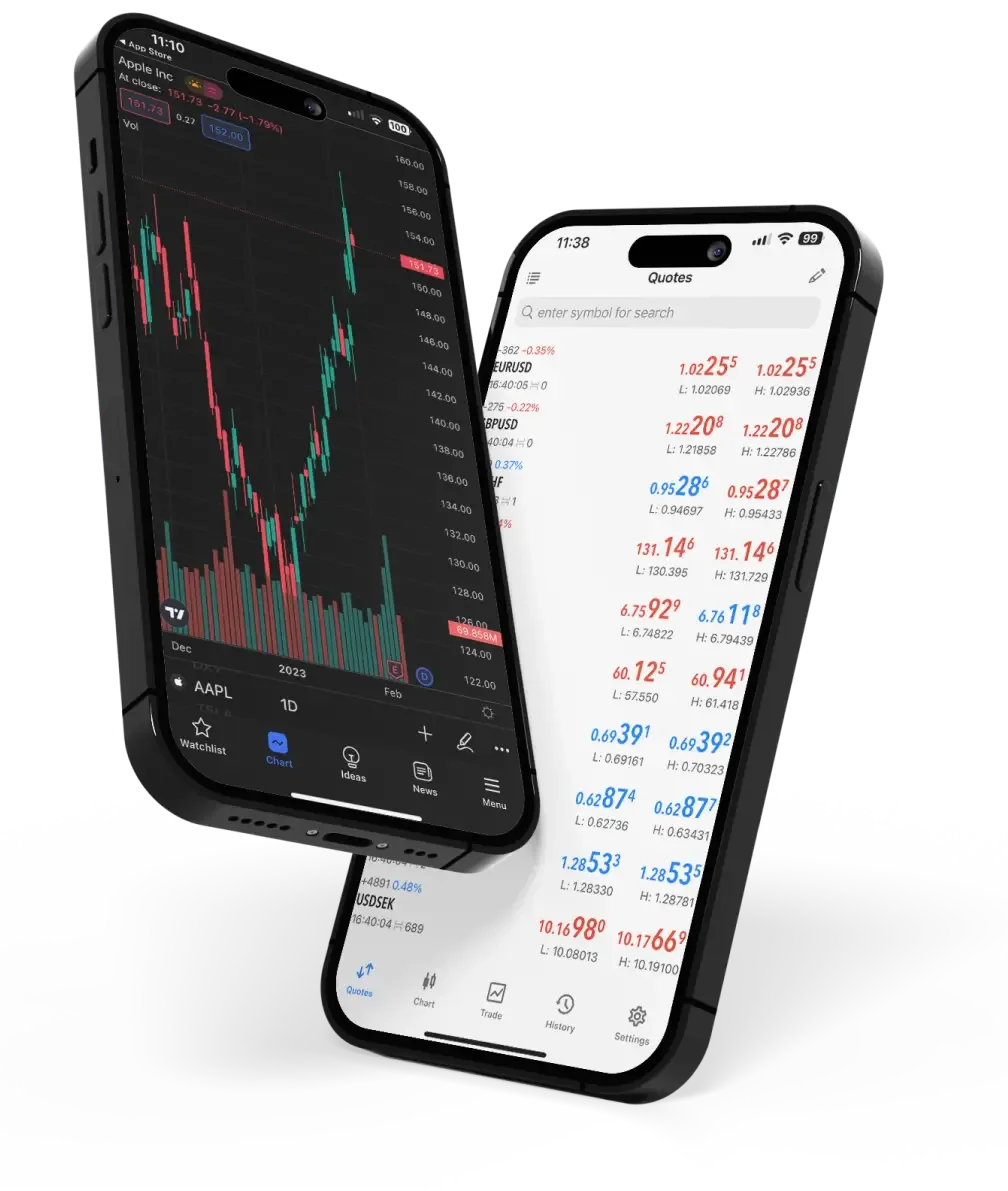
Setting up Metatrader 4 might seem daunting if you’re new to forex trading, but it doesn’t have to be. This guide will walk you through every step of the process, ensuring you have a smooth start to your trading journey. Let’s get started!
Why Choose MetaTrader 4?
MetaTrader 4 is one of the most popular trading platforms globally, offering a user-friendly interface and powerful features. It is suitable for both beginners and experienced traders. MT4 provides real-time access to markets, advanced charting tools, and automated trading capabilities, making it an excellent choice for anyone serious about trading.
Downloading and Installing MetaTrader 4
The first step to getting started with MT4 is downloading and installing the software. Here’s how to do it:
1. Visit the Official Website: Go to the official MetaTrader 4 website to download the platform. Ensure you are downloading from a reputable source to avoid any security risks.
2. Download the Installer: Click on the download link and save the installer file to your computer. The file is relatively small, so it should only take a few moments to download.
3. Run the Installer: Once the download is complete, open the installer file and follow the on-screen instructions. The installation process is straightforward and should only take a few minutes.
Creating a MetaTrader 4 Account
After installing MT4, you need to create an account to start trading. Here’s what you need to do:
1. Open MT4: Launch the MetaTrader 4 platform on your computer. You will be greeted by a welcome screen.
2. Register an Account: Click on ‘File’ in the top-left corner and select ‘Open an Account’. Follow the prompts to enter your personal information and create your account.
3. Choose a Broker: You will need to select a broker to connect with MT4. Make sure to choose a reputable broker that suits your trading needs.
Navigating the MetaTrader 4 Interface
Familiarizing yourself with the MT4 interface is crucial for efficient trading. Here are the key components you need to know:
1. Market Watch: This window displays all the available trading instruments. You can customize it to show only the assets you are interested in.
2. Navigator: This section contains your account information, indicators, expert advisors, and scripts. It’s your go-to place for managing these elements.
3. Terminal: Located at the bottom of the screen, the Terminal window provides access to trading history, alerts, mailbox, and other essential tabs.
Customizing Charts on MetaTrader 4
Charts are vital for analyzing market trends and making informed trading decisions. Here’s how to customize them to your liking:
1. Open a Chart: Right-click on an asset in the Market Watch window and select ‘Chart Window’. A new chart will open for the selected asset.
2. Customize Appearance: Right-click on the chart and select ‘Properties’. Here, you can customize the colors and style to suit your preferences.
3. Add Indicators: Use the Navigator window to drag and drop technical indicators onto your chart. This can help you analyze market conditions and make better trading decisions.
Placing Your First Trade on MetaTrader 4
Now that you have set up your account and customized your charts, it’s time to place your first trade. Follow these steps:
1. Open the Order Window: Click on ‘New Order’ in the toolbar or right-click on the asset you want to trade in the Market Watch window and select ‘New Order’.
2. Set Your Parameters: In the order window, you can set the volume, stop loss, and take profit levels. Make sure to review these settings carefully.
3. Place the Trade: Once you are satisfied with your settings, click on ‘Buy’ or ‘Sell’ to place your trade. Your trade will now appear in the Terminal window under the ‘Trade’ tab.
Managing Open Trades on MetaTrader 4
Managing your trades effectively is crucial for success in trading. Here’s how to do it on MT4:
1. Monitor Open Trades: Go to the Terminal window and click on the ‘Trade’ tab. Here, you can see all your open trades, including their current profit or loss.
2. Modify Trades: Right-click on an open trade and select ‘Modify or Delete Order’. You can adjust the stop loss and take profit levels to manage your risk.
3. Close Trades: To close a trade, right-click on it and select ‘Close Order’. Confirm the action, and your trade will be closed, locking in your profit or loss.
Utilizing Expert Advisors on MetaTrader 4
Expert Advisors (EAs) are automated trading systems that can execute trades on your behalf based on predefined criteria. Here’s how to use them:
1. Install an EA: Download an EA from a reputable source and save it to your computer. In the Navigator window, click on ‘Expert Advisors’ and select ‘Add’.
2. Activate the EA: Drag the EA onto the chart of the asset you want it to trade. Configure the settings according to your preferences.
3. Monitor Performance: Keep an eye on the EA’s performance to ensure it is meeting your trading objectives. Make adjustments as necessary.
Accessing MetaTrader 4 on Mobile
For traders on the go, MT4 offers a mobile app that allows you to manage your trades from anywhere. Here’s how to get started:
1. Download the App: Visit the App Store or Google Play Store and download the MetaTrader 4 app.
2. Log In: Open the app and log in using your account credentials.
3. Trade on the Go: The mobile app offers most of the features available on the desktop version, allowing you to trade seamlessly from your mobile device.
Troubleshooting Common Issues on MetaTrader 4
Even the best platforms can encounter issues. Here’s how to troubleshoot common problems on MT4:
1. Connection Problems: If you are having trouble connecting to the server, check your internet connection and firewall settings. Restarting the platform can also help.
2. Platform Crashes: Ensure your software is up to date and that your computer meets the system requirements. Reinstalling the platform can resolve persistent issues.
3. Trade Execution Delays: This can be due to high market volatility or server issues. Contact your broker for assistance if the problem persists.
Enhancing Your Skills with MetaTrader 4 Tutorials
To maximize your trading success, take advantage of the numerous tutorials available for MT4. Here’s where to find them:
1. Online Courses: Platforms like Udemy and Coursera offer comprehensive courses on using MT4 effectively.
2. YouTube Channels: Many experienced traders share their insights and tips on YouTube. Search for MT4 tutorials to find valuable content.
3. Broker Resources: Many brokers provide educational resources and webinars to help you get the most out of MT4.
Joining MetaTrader 4 Communities
Engaging with other traders can provide valuable insights and support. Here’s how to join the MT4 community:
1. Online Forums: Websites like Forex Factory and BabyPips have active forums where traders discuss strategies and share experiences.
2. Social Media Groups: Join MT4-focused groups on Facebook and LinkedIn to connect with other traders and stay updated on the latest trends.
3. Local Meetups: Look for local trading meetups or events in your area to network with fellow traders and learn from their experiences.
Conclusion
Setting up MetaTrader 4 is a straightforward process that opens the door to a world of trading opportunities. By following the steps outlined in this guide, you’ll be well on your way to becoming a successful trader. Take advantage of the platform’s powerful features, continue learning, and engage with the trading community to maximize your potential. Happy trading!